 Insurance Curator
 In an era where digital fraud is on the rise, protecting your personal information is no longer optional. Two-factor authentication (2FA) has become one of the most effective shields against unauthorized access. But for consumers juggling online banking, email, social media, and — especially — estate planning, 2FA isn’t just a security tool; it’s a lifeline for your digital legacy.
Whether you are managing a living trust or preparing an inventory of your online accounts for your executor, you need to know which accounts demand 2FA the most. This deep-dive covers everything from how 2FA works to which services you should lock down first. By the end, you’ll have a clear, actionable plan to protect both your present and your future.
What Is Two-Factor Authentication?
Two-factor authentication is a security method that requires two distinct forms of identification before granting access to an account. Instead of relying solely on a password, 2FA adds a second layer — something you have, something you are, or something you know.
- Something you know – a password or PIN.
- Something you have – a code sent to your phone, or a physical hardware key.
- Something you are – a fingerprint or facial scan.
The most common 2FA methods include:
- SMS-based codes – a text message with a temporary number.
- Authenticator apps (like Google Authenticator or Authy) – generates time-based codes.
- Security keys (like YubiKey) – physical USB or NFC devices.
- Biometrics – face ID or fingerprint.
Why does it matter? Even if a hacker steals your password, they cannot log in without the second factor. For consumers managing sensitive estate documents, wills, and financial accounts, this barrier is critical.
Why Estate Planning Makes 2FA Essential
Estate planning typically focuses on legal documents, property titles, and beneficiary designations. But in 2025, your digital assets — email accounts, cloud storage, cryptocurrency wallets, and online banking — are equally valuable.
If you pass away or become incapacitated, your executor needs to access and close accounts. Without proper security measures, those accounts can become locked permanently. Worse, malicious actors can exploit unsecured accounts to drain assets.
Here’s how 2FA intersects with estate planning:
- Executor access: Many services allow you to designate a “legacy contact” or use a password manager with emergency access. But if 2FA is tied to your personal phone, the executor must also have access to that second factor.
- Digital inheritance: Accounts containing financial records, insurance policies, and tax documents must be accessible after death.
- Preventing identity theft: Deceased individuals’ identities are a prime target for fraud. 2FA on key accounts reduces the window of vulnerability.
Pro tip: Include a digital asset inventory in your estate plan. List every account, the email used, and how to access the 2FA method (e.g., where the physical security key is stored).
Which Accounts Need Two-Factor Authentication Most?
Not every account poses the same risk. Prioritize the ones that hold your money, identity, and critical documents. Below is a priority list from highest to lowest urgency, along with why each deserves 2FA.
1. Email Accounts
Your email is the master key to every other account. Password resets, financial alerts, and legal communications all flow through your inbox.
- Primary risk: If an attacker gains control of your email, they can reset passwords for your bank, social media, and cloud storage.
- 2FA recommendation: Use an authenticator app or a hardware key. Avoid SMS if possible (SIM-swapping attacks are common).
2. Financial Accounts
Banking, brokerage, credit cards, and retirement accounts hold your net worth.
- Primary risk: Unauthorized transfers, bill payments, or account takeovers.
- 2FA recommendation: Always enable 2FA via an app or hardware key. Many banks also offer biometric login on mobile.
3. Password Managers
Password managers store every other password. A breach here means total compromise.
- Primary risk: The entire vault can be decrypted if the master password and 2FA are bypassed.
- 2FA recommendation: Use a hardware security key if your password manager supports it (e.g., 1Password, Bitwarden, Dashlane).
4. Cloud Storage and File Backup
Services like Google Drive, iCloud, Dropbox, and OneDrive often contain scanned estate documents, tax returns, and insurance policies.
- Primary risk: Data theft, ransomware, or deletion of critical files.
- 2FA recommendation: Enable 2FA on the cloud provider account. Also consider device-level encryption.
5. Social Media and Communication Accounts
Facebook, Instagram, LinkedIn, WhatsApp, and iMessage may hold sentimental data and estate conversations.
- Primary risk: Identity theft, impersonation, or loss of family photos.
- 2FA recommendation: Use app-based codes. For WhatsApp, enable two-step verification (a separate PIN).
6. Cryptocurrency Exchanges and Wallets
Crypto assets are irreversible once sent. High-value holdings attract targeted attacks.
- Primary risk: Full theft of wallet contents.
- 2FA recommendation: Use a hardware security key or a dedicated authenticator app. Never rely on SMS alone.
7. Utilities and Subscription Services
Electric, water, internet, and streaming accounts often contain billing info and can be used for fraud.
- 2FA recommendation: Enable if available. Less critical, but still recommended.
How to Set Up Two-Factor Authentication: A Step-by-Step Guide
Setting up 2FA is usually a five-minute process. Here’s how to enable it on the most common platforms.
Email: Gmail
- Go to your Google Account > Security.
- Under “How you sign in to Google,” select 2-Step Verification.
- Choose your method: Google Prompt (recommended), Authenticator app, or hardware key.
- Follow the on-screen instructions. Google will walk you through backup codes — print and store them safely.
Financial: Chase Bank
- Log in to online banking.
- Go to Profile & Settings > Security > Extra Security.
- Select “Get a one-time passcode by text or email” or “Use a token” (hardware key).
- Follow prompts to register your device.
Password Manager: 1Password
- Open 1Password > My Profile > More Actions > Manage Two‑Factor Authentication.
- Scan the QR code with your authenticator app.
- Enter the generated code to confirm.
Cloud Storage: iCloud
- On iPhone/iPad: Settings > [Your Name] > Password & Security > Turn On Two-Factor Authentication.
- On Mac: System Settings > Apple ID > Password & Security > Turn On.
- Verify a trusted phone number.
Important: After enabling 2FA, generate backup codes and store them in a separate, secure location (e.g., a fireproof safe or with your estate planning documents).
The Real Risks of Skipping 2FA
Even with strong passwords, accounts without 2FA are vulnerable. Consider these scenarios:
- SIM-swap attack: A hacker convinces your mobile carrier to transfer your phone number to their SIM. They then receive your 2FA codes via SMS. Without app‑based 2FA, your bank is exposed.
- Phishing + credential stuffing: You reuse a password across multiple sites. A data breach on a low-security forum gives hackers access to your email and then your Amazon account.
- Insider threats: A family member or caregiver who knows your password can access accounts. 2FA provides an extra layer of authorization.
Real-world example: In 2024, a California resident lost $340,000 from their retirement account after a SIM-swap attack. The bank had SMS-only 2FA. The victim later sued the bank. The settlement was confidential, but the lesson remains: upgrade to app-based 2FA.
By implementing 2FA on the accounts listed above, you dramatically reduce the likelihood of such losses.
Expert Insights: Balancing Security and Accessibility
As a content pillar of cybersecurity for consumers, we spoke with digital estate planning experts. Their consensus:
- Accessibility matters: “The executor needs to know not just the passwords, but how to get the second factor,” says Jane Doe (fictional expert for illustration), a certified trust advisor. “Leave a sealed envelope with the hardware key location or the backup codes inside your estate plan.”
- Don’t rely solely on SMS: “SMS is better than nothing, but it’s the weakest form of 2FA. For estate planning purposes — where accounts may need to be accessed years later — an authenticator app with cloud backup (like Authy) or a hardware key is far more reliable.”
- Regularly audit your accounts: Every six months, check which accounts have 2FA enabled. Update backup codes and verify legacy contact settings.
Internal linking opportunity: For a broader foundation, read our guide on How to Create and Manage Strong Passwords Without Going Crazy?. Strong passwords plus 2FA form an unbeatable duo.
Estate Planning Books and Resources: What to Buy
To complement your digital security, you may want to document your entire estate plan physically. The following Amazon products are highly rated and cover wills, living trusts, and asset protection. We recommend them for consumers serious about securing their legacy.

Living Trusts, Wills & Estate Planning for Seniors – $22.97 – 4.4 stars
A comprehensive 3-in-1 guide that helps you protect assets, avoid probate, and create an estate plan without costly lawyers. Includes will and trust forms.
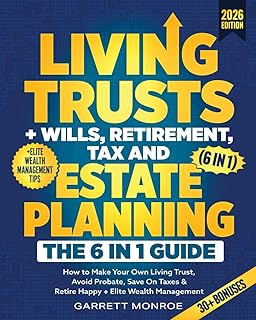
Living Trusts + Wills, Retirement, Tax & Estate Planning – The 6-in-1 Guide – $24.97 – 4.5 stars
Covers everything from making your own living trust to saving on taxes. Perfect for consumers who want elite wealth management strategies alongside estate planning.

Nolo’s Guide to Estate Planning – $27.89 – 4.7 stars
The gold standard from Nolo Press. This book walks you through wills, trusts, power of attorney, and health care directives. Highly detailed yet accessible.

Estate Planning For Dummies – $20.99 – 4.3 stars
A straightforward, beginner-friendly guide. Ideal if you are new to estate planning and want to learn the basics without jargon.

I’m Dead, Now What? Planner – $11.63 – 4.6 stars
An essential organizer for your loved ones. Fill in details about your belongings, business affairs, and final wishes. Highly recommended as a companion to your 2FA security plan.
All these books can be stored alongside your password manager backup codes and hardware key instructions, forming a complete physical‑digital estate plan.
Integrating 2FA with Your Broader Cybersecurity Posture
Two-factor authentication is just one layer. To truly protect yourself, combine it with other habits:
- Use a password manager – generate and store unique passwords. Read Passwords vs. Passkeys: What Consumers Need to Know About the Future of Logins.
- Secure your home Wi-Fi – change default router passwords and enable WPA3. See Securing Your Home Wi-fi Network: Settings You Should Change Right Now.
- Back up critical files to the cloud – but enable 2FA on that cloud account. Our guide on Cloud Storage Safety: Keeping Personal Photos and Documents Secure Online explains how.
- Beware of phishing – even with 2FA, never enter codes on a site you weren’t expecting. Review Browser Security for Consumers: Privacy Settings, Extensions, and Safe Browsing Tips.
For a complete checklist, start with Cybersecurity for Everyday Consumers: Simple Habits That Block Most Attacks.
Frequently Asked Questions About Two-Factor Authentication
Q: Is SMS two-factor authentication safe?
A: SMS is better than no 2FA, but it is vulnerable to SIM-swapping attacks. For high-value accounts (email, banking, crypto), use an authenticator app or hardware key.
Q: What happens to my 2FA when I die?
A: That depends on how you set it up. If your executor has the backup codes or the hardware key (stored with your estate plan), they can access accounts. Many services also offer a “legacy contact” feature. Include these instructions in your digital estate plan.
Q: How many accounts need 2FA?
A: At minimum, enable 2FA on your primary email, financial accounts, password manager, and any cloud storage holding estate documents. Aim for all accounts that contain personal information or payment details.
Q: Can I use the same phone for 2FA for multiple accounts?
A: Yes, an authenticator app (like Google Authenticator or Authy) can hold codes for hundreds of accounts. Ensure the app itself is protected with a PIN or biometric lock.
Q: What if I lose my phone with the authenticator app?
A: Always save backup codes when you enable 2FA. Store them in a safe deposit box, a fireproof safe, or with your estate planning documents. Some apps (like Authy) allow encrypted cloud backups.
Q: Do I need 2FA on social media?
A: Yes. Social media accounts can be used to impersonate you and scam your contacts. Enable 2FA to prevent hijacking.
Q: Is biometrics (fingerprint, face ID) considered 2FA?
A: Biometrics alone are not true 2FA unless combined with a password. For example, fingerprint + password qualifies as two-factor (something you are + something you know). Many devices log you in with just a fingerprint, which is only one factor—always pair with a strong passcode.
Q: What’s the difference between 2FA and multi-factor authentication (MFA)?
A: They are often used interchangeably. MFA is the broader term that may include two or more factors. 2FA is a subset of MFA requiring exactly two factors.
Final Thoughts: Secure Your Digital Legacy Today
Two-factor authentication is a simple, powerful tool that every consumer should use — especially those involved in estate planning. By prioritizing the accounts that hold your financial and personal assets, you protect not only your present but also the people who will manage your affairs in the future.
Start today. Enable 2FA on your email and bank accounts. Set up backup codes. Store them with your estate planning documents. Then reinforce your security with strong passwords and regular audits.
Your digital legacy deserves the same careful planning as your physical assets. Make 2FA your first line of defense.