 Insurance Curator
 Remote work is here to stay – and so are the cyber-risks that come with it. When your laptop, smartphone, or tablet becomes your office, every personal device turns into a potential entry point for hackers. Protecting those devices isn’t just about corporate data; it’s about safeguarding your entire digital life, including the financial and legacy plans you’re building for the future.
In fact, the same devices you use for Zoom calls and email are also the ones storing photos, passwords, and sensitive estate planning documents. If a breach hits your personal machine, it can delay or derail everything from inheritance plans to tax filings. That’s why this guide goes deep into practical, consumer-friendly strategies for remote workers – and shows how estate planning fits into the bigger picture of cybersecurity.
Why Remote Workers Are Prime Targets for Cyberattacks
Remote workers operate outside the corporate firewall. You’re no longer protected by the office’s enterprise-grade security, so hackers see your home network and personal devices as low-hanging fruit.
- 45% of remote workers admit to using the same password for work and personal accounts, according to recent surveys.
- Phishing attacks targeting home users increased by over 200% since 2020.
- Criminals know that personal devices often lack endpoint protection, patching schedules, and corporate VPNs.
The result? A single compromised personal device can give attackers access to your employer’s systems, your bank accounts, and even the digital will you’ve carefully prepared.
The Hidden Link Between Cybersecurity and Estate Planning
You might wonder: why is an article about consumer cybersecurity also mentioning estate planning? Because digital assets are now a core part of your legacy. Remote workers accumulate digital property: cryptocurrency wallets, online accounts, cloud-stored documents, and even intellectual property.
If your devices are hacked and data is encrypted or stolen, your estate plan could become impossible to execute. Beneficiaries may never access photos, financial records, or the instructions left in a digital will. That’s why securing your devices today is a foundational step in responsible estate planning.
Consider this: the book Nolo’s Guide to Estate Planning (rated 4.7 stars) emphasizes the need to document digital accounts. You can’t document what you haven’t protected.
Check out this resource for getting started:

Core Device Security: Lock Down Your Laptop, Smartphone, and Tablet
Before diving into network or account security, make sure every personal device you use for work is physically and logically hardened.
1. Keep Operating Systems and Apps Updated
Hackers love unpatched software. Enable automatic updates on Windows, macOS, iOS, and Android. Don’t postpone updates – they often fix zero-day vulnerabilities.
2. Use Full-Disk Encryption
BitLocker (Windows), FileVault (macOS), and device encryption (iOS/Android) ensure that even if your laptop is stolen, the data remains unreadable.
3. Install Only Necessary Apps
Remove bloatware, old games, and unused applications. Every extra app increases your attack surface.
4. Separate Work and Personal Profiles
If your employer allows it, create a dedicated user profile on your device for work tasks. This limits the damage if you accidentally download malware while browsing personal sites.
5. Enable Remote Wipe
Configure “Find My” (Apple) or “Find My Device” (Windows/Android) so you can erase the device remotely if it’s lost or stolen. That protects both corporate data and your estate planning documents.
Securing Your Home Wi-Fi Network
Your home router is the gateway for all connected devices. If it’s weak, everything inside your network is at risk – including the laptop where you manage trust documents.
Settings You Should Change Right Now
- Change the default admin credentials of your router. Many routers ship with “admin/admin” – a gift for intruders.
- Enable WPA3 encryption (or WPA2 if WPA3 isn’t available). Never use WEP.
- Disable WPS (Wi-Fi Protected Setup) – it’s notoriously insecure.
- Set up a guest network for IoT devices (smart speakers, cameras, thermostats) so they don’t share the same subnet as your work computer.
For a full checklist, read our article on Securing Your Home Wi-fi Network: Settings You Should Change Right Now.
Password Hygiene: Stop Reusing Credentials
Password reuse is the #1 cause of account takeovers. Remote workers often juggle dozens of accounts (work email, VPN, Slack, project management tools, personal banking). Using the same password everywhere is like using one key for your house, car, and safe.
Password Manager: Your Best Friend
A password manager generates and stores unique, complex passwords for every site. It also autofills credentials, saving time and reducing the urge to reuse.
Recommended habits:
- Every password must be at least 12 characters with mixed case, numbers, and symbols.
- Enable passkeys where possible – they’re phishing-resistant and faster.
- Never answer security questions truthfully online; use random answers stored in your manager.
For a deeper dive, see Passwords vs. Passkeys: What Consumers Need to Know About the Future of Logins.
Two-Factor Authentication: Which Accounts Need It Most
2FA adds a second layer of security beyond a password. For remote workers, it’s non-negotiable on:
- Work email (often used for password resets)
- Cloud storage (Google Drive, Dropbox, OneDrive) – where you might store estate planning PDFs
- Financial accounts (banks, investment platforms)
- Social media (if used for work marketing)
Prefer app-based authenticators (like Google Authenticator or Authy) over SMS, because SIM swapping can bypass SMS 2FA.
Learn more about Two-factor Authentication for Consumers: What It Is and Which Accounts Need It Most.
Safe Browsing and Phishing Awareness
Phishing is the top attack vector for remote workers. A convincing email that looks like it’s from your IT department could install ransomware on your personal device.
How to Spot a Phish
- Check the sender address: not just the display name.
- Hover over links before clicking – look for misspellings or odd domains.
- Be wary of urgency: “Update your password immediately or account will be suspended.”
- Don’t open unexpected attachments – especially .zip, .exe, or .docm files.
Browser Privacy Settings
- Use a browser with strong privacy defaults (Firefox, Brave, or Safari).
- Install uBlock Origin to block malicious ads.
- Disable third-party cookies and enable “Do Not Track.”
- Avoid browser extensions that request “read and change all your data.”
For more, read Browser Security for Consumers: Privacy Settings, Extensions, and Safe Browsing Tips.
Mobile Cybersecurity: Don’t Forget Your Phone
Many remote workers rely on their smartphones for authentication, email, and even hotspotting their laptop. Yet phones are often neglected.
Lock Down Your Smartphone
- Use biometric lock (fingerprint or face) plus a strong PIN – not a pattern swipe.
- Keep iOS and Android updated – Apple and Google release emergency patches regularly.
- Review app permissions – does a flashlight app need access to your contacts? No.
- Avoid sideloading apps from outside official stores.
For an exhaustive guide, see Mobile Cybersecurity: How to Lock down Your Smartphone Against Hackers.
Cloud Storage Safety: Where Your Estate Planning Documents Live
If you store your will, trust, or life insurance policies in the cloud, you must secure that account.
Best Practices for Cloud Storage
- Use strong, unique passwords (see password manager above).
- Enable 2FA on every cloud account.
- Encrypt sensitive files before uploading (use tools like Cryptomator or VeraCrypt).
- Review shared links – make sure they’re set to “restricted” or “password-protected.”
- Don’t rely solely on cloud backups – also keep local encrypted backups.
Deepen your knowledge with Cloud Storage Safety: Keeping Personal Photos and Documents Secure Online.
Ransomware: Can Your Personal Files Be Held Hostage?
Ransomware isn’t just for big corporations. Home users are increasingly targeted, often through phishing or malicious downloads. Your personal photos, tax returns, and estate planning documents could be encrypted – and the criminals demand payment.
Prevention Is Key
- Regularly back up important files using the 3-2-1 rule (three copies, two different media, one offsite).
- Keep backups disconnected from your main device (e.g., an external drive you only plug in for backups).
- Don’t pay the ransom – there’s no guarantee you’ll get your data back.
- Use anti-ransomware software that monitors for suspicious encryption behavior.
For a full discussion, see Ransomware and Consumers: Can Your Personal Files Be Held Hostage and What to Do.
Protecting Kids Online: A Family Affair
Remote workers often share devices or home networks with children. Kids’ online habits – downloading games, clicking ads, visiting dubious sites – can introduce malware to the same network you use for work.
Simple Steps for Families
- Set up parental controls on devices and routers.
- Teach children not to click on pop-ups or download free software.
- Create separate user accounts for kids with limited privileges.
- Monitor for phishing attempts disguised as gaming giveaways.
Read more: Protecting Kids Online: Cybersecurity Basics for Families with Children.
Public Wi-Fi: The Hidden Danger for Remote Workers
Even if you mainly work from home, you might occasionally use coffee shop or hotel Wi-Fi. Public networks are notoriously unsafe – attackers can intercept data or perform man-in-the-middle attacks.
Do’s and Don’ts
- Always use a VPN when connected to public Wi-Fi. A VPN encrypts traffic between you and the internet.
- Don’t access sensitive accounts (banking, estate planning) on public Wi-Fi.
- Turn off file sharing and AirDrop before connecting.
- Forget the network after use – don’t let your device auto-join later.
For a complete guide, see Public Wi-fi Safety: Do’s and Don’ts When Using Internet on the Go.
How to Respond if Your Personal Email Account Gets Hacked
Despite all precautions, breaches happen. Knowing how to react quickly can minimize damage to your work and your estate plan.
Immediate Steps
- Change your password immediately from a different device.
- Revoke all active sessions (log out of unknown locations).
- Check for email forwarding rules – attackers often set them up to intercept password reset emails.
- Scan your device for malware using trusted antivirus software.
- Notify your employer’s IT security if work-related emails are at risk.
- Contact your financial institutions if banking information was compromised.
Read the full reaction plan: How to Respond if Your Personal Email Account Gets Hacked?.
Estate Planning: The Final Piece of Your Digital Security Puzzle
Now that your devices and accounts are locked down, it’s time to make sure your digital legacy is in order. Estate planning isn’t just about wills and trusts – it’s about digital asset succession.
What to Include in Your Digital Estate Plan
- A list of all online accounts (email, cloud storage, social media, cryptocurrency exchanges, subscriptions).
- Instructions for each account: should it be deleted, transferred, or memorialized?
- Passwords (stored in your password manager and shared with a trusted executor via an emergency access feature).
- Documents such as living wills, trust papers, and powers of attorney – stored securely and accessible to your executor.
Why this matters for remote workers: You likely have more digital assets than average – freelance portfolios, client files, domain names, and online businesses. Without a plan, those assets could be lost forever.
Recommended Estate Planning Books
To get started, consult these top-rated resources. They cover everything from living trusts to avoiding probate – all essential when you’ve secured your digital life.
1. Living Trusts, Wills & Estate Planning for Seniors – The Complete 3-in-1 Guide

Rating: 4.4 out of 5 stars
Price: $22.97
ASIN: B0FQ2WD9P5
This guide includes will and trust forms, making it a practical choice for seniors and anyone who wants to avoid costly lawyers.
2. Living Trusts + Wills, Retirement, Tax & Estate Planning – The 6-in-1 Guide
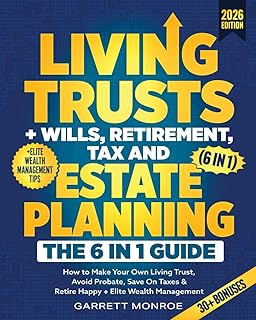
Rating: 4.5 out of 5 stars
Price: $24.97
ASIN: B0F7FRGV1L
An all-in-one resource covering wealth management and tax strategies – ideal for remote workers with complex financial lives.
3. Nolo’s Guide to Estate Planning
Rating: 4.7 out of 5 stars
Price: $27.89
ASIN: 1413331661
A trusted, lawyer-reviewed reference that explains how to plan your estate without expensive legal fees.
4. Estate Planning For Dummies

Rating: 4.3 out of 5 stars
Price: $20.99
ASIN: 1394158548
Perfect if you’re new to estate planning and want an easy-to-follow introduction with actionable steps.
5. I’m Dead, Now What? Planner

Rating: 4.6 out of 5 stars
Price: $11.63
ASIN: 1441317996
A practical organizer where you can record all your accounts, passwords, and final wishes – the physical complement to your digital security plan.
Frequently Asked Questions
Q: How do I secure my personal laptop if my employer doesn’t provide security software?
A: Use the built-in security features (firewall, encryption, automatic updates) and install a reputable antivirus. Consider a VPN for all public network connections.
Q: Should I use the same device for work and personal tasks?
A: It’s risky. If possible, use a separate device or at least separate user profiles. If not, enforce strict password hygiene and limit personal browsing to safe sites.
Q: What should I do with my estate planning documents after cybersecurity setup?
A: Store encrypted copies in at least two locations – one cloud, one offline (USB drive in a safe). Give your executor access to your password manager emergency kit.
Q: How often should I update my digital estate plan?
A: Review it annually, or whenever you change jobs, open new accounts, or experience a security incident. Update your password list and instructions accordingly.
Q: Can a password manager be hacked?
A: While no system is 100% secure, reputable password managers use zero-knowledge encryption: even the company can’t see your passwords. Enable 2FA on your manager account for extra protection.
Final Thoughts: Your Digital Life Deserves Both Security and a Plan
Cybersecurity for remote workers isn’t just about keeping corporate data safe – it’s about protecting your personal identity, finances, and legacy. When you secure your devices, enable 2FA, and practice safe browsing, you’re also safeguarding the estate plan you’ve worked hard to build.
Don’t wait for a breach to force your hand. Lock down your devices today, document your digital assets, and invest in reliable estate planning resources like the books featured above. Your future self – and your family – will thank you.
For more consumer-focused cybersecurity insights, explore our other guides: