 Insurance Curator
 You know the drill. You need a password that’s at least 12 characters long, includes uppercase, lowercase, numbers, and a special character. It must be different from every other password you’ve ever used. And you’re supposed to change it every few months. No wonder most people give up and use “Password123!”
But here’s the truth: managing strong passwords doesn’t have to drive you insane. With the right strategy—and a bit of estate-planning thinking—you can lock down your digital life without losing your mind. In fact, the same careful mindset that helps you protect your assets and family in a Living Trusts, Wills & Estate Planning for Seniors guide can also protect your online identity.
This deep-dive will walk you through a simple, fatigue-free system for creating and managing bulletproof passwords. We’ll also show you why password security is a critical part of your broader estate plan—because your digital legacy matters just as much as your physical assets.
Why Strong Passwords Are the Foundation of Your Digital Estate Plan
When you think about estate planning, you probably imagine wills, trusts, and beneficiary designations. But what about your email accounts, social media profiles, password managers, and cryptocurrency wallets? Without strong, unique passwords, your heirs may never access the accounts that hold your financial and sentimental legacy.
Estate planning without password management is like a safe without a key. Even the best-laid plans for your assets and wishes become worthless if a hacker locks you out—or if your loved ones can’t get in.
A comprehensive approach to cybersecurity for consumers means treating every online account as a valuable piece of your estate. And that starts with the gateway to all those accounts: your passwords.
The Real Problem: We’re Drowning in Logins
The average person now juggles over 100 online accounts. Repeating the same password across multiple sites is dangerous—a breach on one platform can cascade into your bank, email, and social media. On the flip side, creating 100 unique, complex passwords is impossible for the human brain to remember.
That’s where most people get stuck. They either:
- Use a few simple passwords across all accounts.
- Write passwords on sticky notes.
- Cycle through slight variations (e.g., Summer2023!, Summer2024!).
- Give up and use a browser’s built-in save feature.
All of these approaches are flawed. But there is a way out that doesn’t require a photographic memory.
The Password Manager: Your Digital Safe Deposit Box
The single best tool for password sanity is a password manager. Think of it as a secure, encrypted vault that stores all your passwords and auto-fills them when you log in. You only need to remember one master password.
Why password managers are estate-planning essential:
- They generate and store unique, high-strength passwords for each account.
- They sync across your devices (phone, laptop, tablet).
- Many offer emergency access features, letting a trusted person request access if you become incapacitated.
- You can securely share selected passwords with family members (shared family vaults).
What to look for in a password manager:
| Feature | Why It Matters |
|---|---|
| Zero-knowledge encryption | The company can’t see your passwords |
| Multi-factor authentication | Adds an extra layer to protect your vault |
| Emergency access / inheritance | Let’s someone else access your vault when you die |
| Cross-platform support | Works on Windows, Mac, iOS, Android |
| Password health reports | Shows weak, reused, or compromised passwords |
Warning: Avoid storing passwords in your browser. Browser-based password managers are often less secure, don’t support emergency access, and can be easily exported by malware.
How to Create a Strong Master Password (That You Can Actually Remember)
Your password manager’s master password is the key to your entire digital kingdom. It must be strong but memorable. Here’s a method that works:
The Diceware / Passphrase Method
- Choose 4–7 random words. For randomness, use dice or a word list. Example:
correcthorsebatterystaple. - Add a separator (hyphen, underscore, or space) between words.
- Optionally insert a number and a special character.
A passphrase like hunter2-banana-wallet-hammock is far stronger than P@ssw0rd! and much easier to type. Aim for at least 20 characters.
How to remember it:
- Create a story that links the words.
- Write it down on paper and store it in your physical safe or lockbox—paper is hack-proof.
- Never store your master password digitally (no cloud notes, no email drafts).
Important: Treat your master password like the combination to a family vault. If you have a will or trust, include clear instructions for how your executor or heirs should find and use this password—without writing it into the will itself (since wills become public records after probate).
Step-by-Step: Setting Up Your Password Management System
Step 1: Choose a password manager
Research reputable options: 1Password, Bitwarden, Dashlane, or KeePass (offline). For most consumers, a paid solution with emergency access is worth the cost.
Step 2: Install and set up on your primary device
Download the app or browser extension. Create your master passphrase using the method above. Enable multi-factor authentication (MFA) immediately.
Step 3: Import or manually add your existing accounts
Most managers can import passwords from browsers or CSV files. Then start updating your weak passwords using the built-in generator.
Step 4: Enable emergency access (critical for estate planning)
This feature allows someone you trust to request access to your vault after a waiting period (e.g., 48 hours). You can deny the request if you’re still alive. This ensures your digital assets aren’t lost if you pass away or become incapacitated.
Step 5: Set up shared folders for family accounts
Create a shared folder for household accounts (utilities, streaming, insurance). Share it with your spouse or adult child. Now everyone has necessary access without passwords on sticky notes.
Beyond Passwords: Two-Factor Authentication (2FA) Is Your Best Friend
A password alone is no longer enough. Two-factor authentication adds a second layer—usually a code from an authenticator app, a text message, or a hardware key.
For estate planning, prioritize accounts where 2FA is essential:
- Email (the master key to password resets)
- Password manager (obviously)
- Bank and investment accounts
- Social media and cloud storage
- Cryptocurrency exchanges
Note on SMS 2FA: It’s better than nothing, but SIM-swapping attacks can compromise it. For high-value accounts, use an authenticator app (e.g., Google Authenticator, Authy) or a hardware key (YubiKey).
What if you’re incapacitated? Store backup codes for 2FA in your password manager’s emergency access vault, and keep a printed copy in a safe. Your trusted contact needs both the password and the 2FA method to get in.
For a deeper dive, read our guide on Two-factor Authentication for Consumers: What It Is and Which Accounts Need It Most.
Password Hygiene Without the Headache
You don’t need to change passwords every 30 days. The National Institute of Standards and Technology (NIST) now recommends changing passwords only when you suspect a breach. Instead, focus on:
- Using unique passwords for every account. Your password manager does this automatically.
- Checking for data breaches. Use your password manager’s breach monitoring or services like Have I Been Pwned.
- Rotating high-value passwords annually. Bank, email, password manager—these should be updated yearly or immediately after a known breach.
- Avoiding password reuse at all costs. A single reused credential can bring down your entire digital life.
Real-world example: In 2023, a compromised password from a forum leak gave hackers access to a user’s email, then their bank, then their crypto portfolio. A unique password per site would have stopped the attack at step one.
What to Do When a Password Is Breached
When you get a breach alert (from your password manager or a service like Have I Been Pwned), follow these steps:
- Immediately change the password on the affected account.
- If you reused that password anywhere else, change those accounts too.
- Enable 2FA on the breached account if you hadn’t already.
- Check for suspicious activity in the account (emails sent, purchases, recovery settings).
- Update your estate plan if the breached account contains critical data (e.g., digital will, beneficiary info).
The Estate-Planning Connection: Protecting Your Digital Legacy
Your passwords are part of a larger puzzle: making sure your digital life is accessible to your loved ones after your death. Without a plan, your executor may be locked out of essential accounts forever.
Practical steps to integrate passwords into your estate plan:
- Create a digital asset inventory. List every online account, the email used, and where login credentials are stored.
- Store the inventory securely. Use your password manager’s emergency access feature, or keep an encrypted USB drive in your safe.
- Include digital assets in your will or trust. But never put passwords in the will itself (public record). Instead, reference a separate document (e.g., “Instructions for digital executor are in my safe deposit box”).
- Designate a digital executor. This person will have authority to manage your digital accounts after your passing. Your password manager’s emergency access feature is the perfect tool for this.
For a comprehensive reference, the book Living Trusts + Wills, Retirement, Tax & Estate Planning – The 6-in-1 Guide covers exactly how to coordinate these legal documents with your digital life.
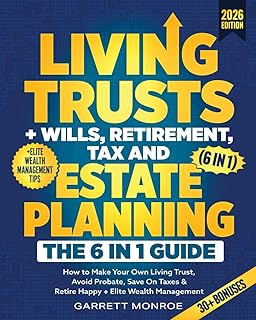
Another excellent resource is Nolo’s Guide to Estate Planning, which includes guidance on digital assets and powers of attorney.
Common Password Mistakes (and How to Fix Each One)
Let’s bust some persistent myths.
| Mistake | Why It’s Dangerous | Better Approach |
|---|---|---|
| Using personal info (pet names, birthdays) | Easily guessed via social media | Use a passphrase of random words |
| Writing passwords in a notebook | The notebook can be lost, stolen, or scanned | Use a password manager; write only the master password and lock it in a safe |
| Using the “remember password” feature on public computers | Saved passwords can be extracted | Always use private/incognito mode and never save on shared devices |
| Sharing passwords via email or text | Unencrypted and stored permanently by providers | Use password manager’s sharing feature or a secure messaging app |
| Using a pattern like “Summer2024!” | Hackers know common patterns; easy to brute-force | Let your password manager generate totally random strings |
If you’re managing passwords for elderly parents (a common scenario in estate planning), consider a family password manager plan. That way you can share and manage passwords without calling them every time a login changes. See our article Cybersecurity for Everyday Consumers: Simple Habits That Block Most Attacks for more family-friendly tips.
Passkeys: The Future of Passwordless Logins
Passkeys are the next evolution. Instead of a password, you authenticate with a cryptographic key stored on your device (using FaceID, fingerprint, or a PIN). They’re easier to use and more secure than passwords.
Why passkeys matter for estate planning:
- No password to remember or share.
- Can be stored in your password manager (many now support passkey syncing).
- Some platforms allow recovery via iCloud Keychain or Google Password Manager—ensure your estate plan includes access to those.
Major sites like Google, Apple, PayPal, and GitHub already support passkeys. Over the next few years, they’ll become the standard. For now, you can start using them alongside your password manager.
What happens to passkeys when you die? This is an emerging area. If your passkeys are synced via a cloud-based password manager with emergency access, your digital executor can potentially access them. If not, you may need to rely on recovery codes or physical security keys placed in your safe.
Learn more about the shift in Passwords vs. Passkeys: What Consumers Need to Know About the Future of Logins.
How to Securely Share Passwords with Your Family (Without Getting Hacked)
Sharing passwords is necessary for shared accounts like Netflix, utilities, and insurance portals. But doing it badly can backfire.
Safe sharing methods:
- Use your password manager’s sharing feature. Bitwarden, 1Password, and Dashlane let you share a single login without revealing the actual password.
- Create a shared family vault. This contains all household logins. Each family member has their own master password.
- Avoid texting or emailing passwords. If you must, use a secure link (like in Bitwarden Send) that expires after one view.
Case study: A reader used sticky notes under the keyboard for her husband’s banking logins. The house cleaner took a photo and drained the account. A password manager with a shared vault would have prevented this.
Protecting Your Password Manager from Hackers
Your password manager is a high-value target. If a hacker breaks into it, they have all your keys. Follow these best practices:
- Use a strong, unique master passphrase (as described earlier).
- Enable multi-factor authentication on the manager itself.
- Keep your devices updated (software patches close security holes).
- Be cautious of phishing emails that mimic password manager alerts.
- Consider a hardware security key (YubiKey) for the most sensitive vaults.
And don’t forget physical security: If your laptop is stolen, the thief might try to extract your password manager data. Full-disk encryption (FileVault on Mac, BitLocker on Windows) is non-negotiable. See Mobile Cybersecurity: How to Lock down Your Smartphone Against Hackers for phone-specific advice.
Creating a Password Recovery Plan (Without Giving Up Security)
What if your loved one dies suddenly and you can’t get into their accounts? A good password recovery plan prevents this.
Your checklists for digital estate planning:
- Document every account. Use a spreadsheet or a dedicated tool (like a password manager’s reporting feature).
- Include login URLs, usernames, and recovery email/phone.
- Note which 2FA method is used and where backup codes are stored.
- Provide instructions for how to access the password manager (e.g., “Master password in safe, black metal box in office closet, behind shoe rack”).
- Test the plan every year. Your digital executor should be able to verify access.
The book Estate Planning For Dummies has a dedicated chapter on digital assets and can help you formalize this process.

For a more hands-on organizer, the I’m Dead, Now What? Planner includes sections for listing digital accounts, passwords, and instructions for your family—a perfect complement to your password manager.
The 5-Minute Daily Password Habit You Actually Need
Most advice about passwords feels overwhelming. Here’s a routine that takes five minutes and keeps you safe.
Daily (30 seconds):
- When logging into an account, let your password manager auto-fill. That means you’re using strong, unique passwords without thinking.
Weekly (2 minutes):
- Open your password manager and check the “Weak/Reused” report. Fix one password per week.
Monthly (1 minute):
- Review the emergency access contact(s) in your password manager. Ensure they’re still the right people.
Quarterly (5 minutes):
- Check for breach alerts. Change any compromised passwords immediately.
Annually (30 minutes):
- Update your digital asset inventory. Remove old accounts. Update your estate planning documents to reflect any new accounts or services.
This system keeps you safe without the burnout.
What About Family Members Who Refuse to Use a Password Manager?
You can lead a horse to water, but you can’t make it drink. Yet you still need access to their accounts in an emergency.
For reluctant loved ones:
- Offer to set up their password manager for them.
- Use a shared email account for password resets (not ideal, but better than nothing).
- Keep a physical list of their most critical logins in a sealed envelope inside their trust documents or safe.
- Consider using a family plan of a password manager where you are the “family organizer” and invite them. They only need to learn the basics.
Patience is key. For more on this, see Securing Your Home Wi-fi Network: Settings You Should Change Right Now—it’s another security layer that’s easy to set up once and forget.
Frequently Asked Questions
What is the best way to create a password I can remember without writing it down?
Use a passphrase made of 4–7 random words. Create a mental story linking the words. For example, “blue elephant juggles mangoes” becomes BlueElephantJugglesMangoes!. It’s long, strong, and memorable.
Should I use a password manager for everything, including my email?
Yes. Your email is the single most important account because it can reset almost any other password. Use a strong, unique password in your manager with MFA enabled.
How often should I change my passwords?
Only when you suspect a breach or after you’ve shared a password with someone who shouldn’t have it. NIST no longer recommends arbitrary periodic changes.
Can my password manager be hacked?
It’s possible but rare. Reputable managers use zero-knowledge encryption, meaning even if they’re hacked, your data is unreadable. Your master password is the key—keep it safe.
How do I handle password inheritance after I die?
Enable emergency access in your password manager. Also keep a printed list of your master password and critical accounts in a sealed envelope inside your safe deposit box. Inform your executor where the key is located.
Are passkeys better than passwords?
For most people, yes. Passkeys are phishing-resistant and easier to use. However, they’re not yet universal. Use them where available, but keep your password manager for everything else.
What if I forget my master password?
Most password managers have no password recovery (that would be a security flaw). You must write down your master password and store it in a safe or secure location. Consider having two copies in separate secure locations.
Final Thoughts: Sanity Meets Security
Creating and managing strong passwords doesn’t have to consume your life. The key is to shift from memory-based to tool-based management. A password manager handles the heavy lifting, while you focus on a handful of critical decisions: your master passphrase, 2FA setup, and emergency access for your heirs.
Think of it as a gift to your future self—and to your loved ones. When they’re sorting through your affairs, the last thing you want is for them to be locked out of the accounts that hold your financial legacy and family memories.
By combining these password practices with a solid estate plan—complete with a will or trust that addresses digital assets—you’ll protect everything you’ve built without losing your mind over passwords.
Start today. Choose a password manager, set up emergency access, and update one weak password. Your digital estate will thank you.