 Insurance Curator
 Digital Records and Cloud Backups: Protecting Important Files from Physical Disasters
When a wildfire sweeps through your neighborhood or a flood surges into your basement, the first things that come to mind are family safety and physical possessions. But what about the documents that prove who you are, what you own, and what you want to happen after you’re gone? Estate planning relies on paper—wills, trusts, deeds, insurance policies—and paper burns, tears, and rots. A single disaster can erase decades of careful planning in minutes.
That’s where digital records and cloud backups become your safety net. By digitizing your most critical files and storing them securely off-site, you ensure that even if your home is destroyed, your estate plan survives. This article is part of our Disaster Preparedness content pillar and focuses specifically on the intersection of estate planning and modern digital protection. Let’s explore how to safeguard your legacy against physical disasters.
The Hidden Danger of Physical Documents in Estate Planning
Most people keep their will, trust, and power of attorney in a fireproof safe or a filing cabinet. While a safe offers some protection against fire and theft, it is not foolproof. Extreme heat can melt documents even inside a safe, and water can seep in during floods. According to the National Fire Protection Association, 30% of house fires cause damage beyond the safe’s rating.
Consider the real-world example of the 2018 California Camp Fire. Many families lost everything, including the original copies of their estate planning documents. Without digital backups, proving ownership or executing a will became a legal nightmare. The cost of reconstructing a destroyed estate plan can run into thousands of dollars and months of court delays.
Beyond natural disasters, physical documents are also vulnerable to human error—misplacing a folder, spilling coffee, or a family member accidentally shredding an important paper. In estate planning, every document is a keystone. Lose one, and the arch collapses.
Key documents at risk:
| Document Type | Risk Level | Consequence if Lost |
|---|---|---|
| Last Will & Testament | Critical | Probate delays, intestacy |
| Living Trust | Critical | Loss of asset protection |
| Durable Power of Attorney | High | Legal inability to act for you |
| Advance Healthcare Directive | High | Medical decisions made against your wishes |
| Deeds & Titles | High | Difficulty selling property |
| Insurance Policies | Medium | Claims become harder to process |
The solution is simple: digitize everything and back it up to the cloud. But doing it right requires understanding the tools and strategies.
What Are Digital Records and Cloud Backups?
Digital records are electronic copies of your physical documents—scanned PDFs, digital photos, or born-digital files like signed PDFs from an e-signature service. Cloud backups refer to storing those files on remote servers managed by a third party (e.g., Google Drive, Dropbox, iCloud, or a dedicated backup service like Backblaze).
The synergy is powerful: a digital record is useless if your only copy is on a laptop that is stolen or destroyed. A cloud backup ensures that even if all your local devices are gone, your files remain accessible from any internet-connected device.
Why cloud backups are superior to local backups (like an external hard drive):
- Off-site protection: Not vulnerable to the same physical disaster.
- Redundancy: Multiple copies across data centers.
- Accessibility: Retrieve files from anywhere, even while evacuated.
- Version history: Recover earlier versions if a document is corrupted.
For estate planning, a cloud backup is not just convenient—it is a disaster survival tool.
Why Cloud Backups Are Essential for Disaster Preparedness
Physical disasters are unpredictable. Hurricanes, tornadoes, earthquakes, wildfires, and floods don’t care about your filing system. The Federal Emergency Management Agency (FEMA) recommends that households prepare a “go-bag” with essential documents. But even a go-bag can be left behind during a sudden evacuation. A cloud backup is always with you, as long as you have internet access.
Think of it as a digital duplicate of your safe deposit box—but without the bank’s hours, location, or flood risk. And unlike a safe deposit box, you can update it instantly when you revise your will or add a new asset.
From the estate planning perspective, cloud backups also solve the problem of executor access. If you die in a disaster, your executor needs to find and access your documents immediately. If they are stored on a password-protected cloud account that you never shared, they become inaccessible. That’s why you must plan not just for backup but also for digital inheritance.
Real-world impact: Hurricane Katrina
In 2005, Hurricane Katrina destroyed hundreds of thousands of homes in New Orleans. Many survivors had no proof of home ownership, insurance policies, or birth certificates. The resulting legal chaos delayed insurance payouts and estate settlements for years. Had those documents been digitized and stored off-site, recovery would have been faster and less traumatic.
How to Digitize Your Estate Planning Documents
Creating digital records doesn’t require expensive equipment. A smartphone scanner app (like Adobe Scan or CamScanner) can produce high-quality PDFs. Follow these steps:
Step 1: Gather all essential documents
Collect every paper related to your estate plan, financial accounts, and personal identification. Use the list above as a starting point, and add:
- Birth and marriage certificates
- Social Security card
- Passport
- Beneficiary designations (life insurance, retirement accounts)
- Tax returns (last 3-5 years)
- List of digital assets (crypto, email, social media)
Step 2: Scan at high resolution (300 DPI minimum)
Set your scanner or app to at least 300 DPI for text legibility. For color documents like deeds, use color mode. Name the files clearly: 2025_LivingTrust_Revocable_v2.pdf — avoid vague names like “Scan123.pdf.”
Step 3: Create an inventory spreadsheet
Alongside the scanned files, maintain a master list in a cloud-based spreadsheet (Google Sheets or Excel Online). Columns: Document Name, Date Updated, Location of Original, Cloud Folder, Notes.
Step 4: Encrypt sensitive files
Before uploading, encrypt particularly sensitive documents (wills, trusts, financial statements) using software like Veracrypt or built-in password protection in PDF readers. Then upload the encrypted version. This adds a layer of security in case your cloud account is breached.
Step 5: Upload to a secure cloud service
Choose a provider that offers encryption at rest and in transit. We’ll discuss specifics next.
Choosing the Right Cloud Backup Solution
Not all cloud backups are equal. For estate planning, you need a service that balances security, accessibility, and longevity.
Comparison of popular options
| Service | Storage (Free Tier) | Encryption | Shared Access | Price (Paid) |
|---|---|---|---|---|
| Google Drive | 15 GB | TLS, AES-256 | Easy sharing | $1.99/mo for 100 GB |
| Dropbox | 2 GB | AES-256 | Password-protected links | $11.99/mo for 2 TB |
| iCloud | 5 GB | AES-128 | Family Sharing | $0.99/mo for 50 GB |
| Backblaze B2 | 10 GB free | AES-256 | API-based | $0.006/GB/mo |
| Sync.com | 5 GB | Zero-knowledge | Secure sharing | $8/mo for 2 TB |
Recommendation for estate planning: Use a service with zero-knowledge encryption (like Sync.com or Tresorit) so even the provider cannot read your files. If you prefer a more mainstream option, enable two-factor authentication and use a strong, unique password.
Critical tip: Do not rely solely on a single cloud provider. Create a secondary backup with a different provider or a physical encrypted USB drive stored at a trusted family member’s home. This is a 3-2-1 backup strategy—three copies, two different media, one off-site.
Best Practices for Organizing Digital Records
A chaotic cloud folder is almost as bad as no digital backup. When disaster strikes, you need to find a document in seconds, not hours. Organize your digital estate plan using a clear hierarchy.
Folder structure example
/Estate_Plan/
├── 01_Wills_Trusts/
├── 02_Powers_of_Attorney/
├── 03_Healthcare_Directives/
├── 04_Financial_Accounts/
├── 05_Insurance_Policies/
├── 06_Property_Deeds/
├── 07_Tax_Records/
├── 08_Digital_Assets/
├── 09_Executor_Instructions/
└── 10_Inventory.xlsx
Name your files with dates so you can track revisions. For example: PowerOfAttorney_Durable_2025-03-01.pdf.
Share access with your executor or trustee now. Don’t wait until it’s too late. Use a secure sharing feature that gives them view-only access, and include instructions in your will about how to locate the master password.
Update your digital records whenever you update your estate plan. A living trust revision should trigger a new scan and overwrite the old file. Set a recurring calendar reminder every six months to review and refresh.
Recommended Resources and Tools
While digitization is straightforward, many people benefit from guided books that explain both estate planning and digital backup strategies. Here are three highly rated resources from Amazon that complement this article.
1. Living Trusts, Wills & Estate Planning for Seniors – The Complete 3-in-1 Guide

This guide includes forms for wills and trusts and teaches you how to avoid probate—essential knowledge before you digitize your documents. Priced at $22.97 (rating 4.4), it’s a practical starting point for seniors or anyone new to estate planning.
2. Living Trusts + Wills, Retirement, Tax & Estate Planning – The 6-in-1 Guide
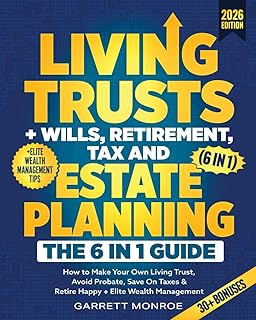
A 6-in-1 resource that covers retirement and tax planning alongside trusts and wills. At $24.97 (rating 4.5), it’s ideal for those who want a comprehensive roadmap before organizing digital files.
3. Estate Planning For Dummies

This straightforward reference explains the why behind each document. Price: $20.99, rating 4.3. Perfect for beginners who need a broad understanding before they start scanning.
4. I’m Dead, Now What? Planner

This physical planner is designed to organize final wishes, business affairs, and passwords. Use it to create a “manual of life” that you can then digitize and back up. At $11.63 (rating 4.6), it’s an excellent low-cost complement to your digital folder.
Pro tip: Combine one of the guides above with a physical planner like I’m Dead, Now What? to ensure that even your executor’s instructions are digitized and backed up.
Integrating Digital Backups with Your Overall Disaster Plan
Your digital records are only one piece of a larger disaster preparedness puzzle. To make them truly effective, they must work in concert with other plans:
- Family Emergency Plan: Ensure all family members know where digital copies are stored and how to access them. Read our guide on Building a Family Emergency Plan for step-by-step details.
- Emergency Go-bag: Include a printed list of cloud storage URLs and passwords (in an encrypted envelope). See Emergency Go-bag Essentials.
- Home Emergency Communication Plan: Share cloud access instructions with an out-of-state contact. Learn how in Creating a Home Emergency Communication Plan.
- Financial Disaster Preparedness: Keep digital copies of cash reserves and bank account information. Our article Financial Disaster Preparedness covers this in detail.
Remember: A cloud backup is only useful if someone knows it exists and can access it. Communicate your digital storage plan to your estate executor, attorney, and a trusted family member.
Frequently Asked Questions
1. Is it safe to store estate planning documents in the cloud?
Yes, provided you use strong encryption (both at rest and in transit), enable two-factor authentication, and share access only with trusted parties. Cloud providers like Google Drive and Dropbox adhere to strict security standards, but zero-knowledge services (like Sync.com) offer an extra layer of privacy.
2. What if I lose my password or two-factor device?
Create a “digital inheritance” plan: store your master password in a sealed envelope with your attorney, or use a password manager that allows emergency access (e.g., LastWill or 1Password’s Emergency Kit). Then scan that plan and back it up in the cloud (encrypted).
3. Do I still need a physical copy of my will?
Yes. In most jurisdictions, an original signed will is required for probate. However, a digital copy can serve as a backup to prove the will’s existence and contents if the original is destroyed. Many states now accept electronic wills (e-wills), but laws vary. Check local regulations.
4. How often should I update my digital records?
At least once a year, and whenever you make changes to your estate plan (e.g., new beneficiaries, new property, new trustee). Set a recurring calendar reminder for the same week you review your life insurance and retirement accounts.
5. Can I use a free cloud service for estate planning?
You can, but be cautious. Free tiers often have limited storage and less robust sharing controls. For a few dollars per month, a paid service gives you better encryption, larger storage, and dedicated customer support—worth the peace of mind.
Conclusion
Physical disasters don’t discriminate—they can destroy homes, communities, and the paper records that anchor your estate plan. By digitizing your essential documents and storing them in the cloud, you create a resilient backup that survives fire, flood, and storm. This isn’t just about convenience; it’s about protecting your legacy when the unthinkable happens.
Start today: gather your most critical papers, scan them at high quality, encrypt the sensitive ones, and upload them to a secure cloud service. Share access instructions with your executor or a trusted family member. Then, tie this digital system into your broader disaster preparedness plan. Your future self—and your heirs—will thank you.
For more resources, explore our other Disaster Preparedness guides and revisit your estate plan at least annually. The few hours you invest now could save your family months of stress later.