 Insurance Curator
 You have decades of family photos, scanned birth certificates, digital copies of your will, and a growing library of medical records. The convenience of cloud storage is undeniable — one click and everything is accessible from anywhere. But in estate planning, those files are not just memories; they are your legacy. A breach or loss can create chaos for your beneficiaries or expose sensitive data to identity thieves.
Securing your cloud storage is not an optional tech tweak. It is a core part of protecting your family’s future. This guide dives deep into the risks, best practices, and actionable steps you can take today to keep your personal photos and documents safe online, with a special focus on estate planning context.
Why Cloud Storage Safety Matters in Estate Planning
Estate planning is about more than signing a will. It is about ensuring your digital and physical assets transfer smoothly to the right people. If your executor cannot access your cloud account — or worse, if a hacker wipes your estate documents — the probate process becomes a nightmare.
According to a 2023 study by the Identity Theft Resource Center, cloud account compromises rose by 37% year-over-year. Personal photos and scanned documents are prime targets: they contain Social Security numbers, bank statements, and even signatures.
Key risks for estate planning files in the cloud:
- Account takeover: A weak password lets an attacker lock you out and delete everything.
- Insider threats: A disgruntled family member or caregiver with shared access might alter documents.
- Data loss: Without proper backup, accidental deletion or provider outage can erase critical records.
- Legal complications: If your cloud account is frozen after death, your executor may need a court order to retrieve files.
For a broader foundation in everyday safety habits, read our guide on Cybersecurity for Everyday Consumers: Simple Habits That Block Most Attacks.
The Current State of Cloud Security: What You Need to Know
Major cloud providers like Google Drive, iCloud, Dropbox, and Microsoft OneDrive encrypt data in transit (SSL/TLS) and at rest using AES-256. That sounds bulletproof, but encryption is only half the story. The provider holds the encryption keys — they can technically access your files if compelled by law or through an internal vulnerability.
Important distinction:
- Encryption at rest protects data if the physical drives are stolen.
- Client-side encryption (zero-knowledge) means the provider never sees your keys. Only you can decrypt the files.
For estate planning documents, zero-knowledge services (e.g., Sync.com, Tresorit, or Boxcryptor overlays) offer an extra layer of privacy. However, convenience often trumps security for consumers. The goal is to find a balance that works for you.
Common Cloud Storage Threats
| Threat | Impact on Estate Planning | Mitigation |
|---|---|---|
| Phishing email targeting your cloud login | Attacker gains full access, can delete or ransom files | Enable 2FA, use a password manager, never click suspicious links |
| Weak password reused across accounts | One breach unlocks all your clouds | Use a unique, complex password for each service |
| Malware on your device that captures clipboard data | Attacker intercepts passwords or file uploads | Keep antivirus updated, avoid pirated software |
| Accidental file deletion by you or a family member | Loss of irreplaceable photos and legal documents | Enable version history and use 3-2-1 backup |
| Provider shutdown or account lockout | Unable to access documents during probate | Download local copies and include login instructions in your estate plan |
For a deeper dive on protecting access, see How to Create and Manage Strong Passwords Without Going Crazy? and Two-factor Authentication for Consumers: What It Is and Which Accounts Need It Most.
Step 1: Choose a Cloud Provider with Strong Security and Estate-Friendly Features
Not all clouds are created equal when it comes to long-term document management. Look for these features:
- Version history: Restore earlier versions of a file if something is changed or corrupted.
- Shared folder permissions: Set view-only access for your executor until needed.
- Inactive account management: Some providers allow you to designate a trusted contact (e.g., Google Inactive Account Manager) who gets access after a period of inactivity.
- GDPR/CCPA compliance: Not strictly security, but indicates serious data governance.
My personal recommendation: Use a major provider (Google Drive, iCloud, or OneDrive) for day-to-day access, then encrypt sensitive files before uploading using tools like VeraCrypt or Cryptomator. This way, even if the provider is breached, your will and financial statements remain unreadable.
If you are concerned about home network vulnerabilities, review Securing Your Home Wi-fi Network: Settings You Should Change Right Now.
Step 2: Organize Your Digital Estate for Your Executor
Imagine your executor logging into your Google Drive, only to find 50,000 random files with names like “scan001.jpg.” You can avoid this by creating a dedicated folder structure for estate planning.
Recommended folder hierarchy:
- Estate Documents (wills, trusts, powers of attorney)
- Financial Accounts (bank statements, investment records, insurance policies)
- Property Deeds and Titles (house, car, land)
- Personal Records (birth certificates, marriage licenses, passports)
- Photos (family albums, sentimental images)
- Instructions (funeral wishes, digital asset list, passwords)
Share a link to the entire “Estate Documents” folder with your executor now — but set the permission to “View only” and enable expiration if the service allows. This prevents accidental edits.
Example: Using Google Inactive Account Manager
- Go to your Google Account settings.
- Under “Data & privacy,” find “Make a plan for your digital legacy.”
- Choose a trusted person and grant them access to specific data (e.g., Drive, Gmail).
- Set a timeout period (e.g., 3 months of inactivity).
Do not rely solely on this feature; also document your cloud account credentials in your physical estate plan. Use a password manager to store the master password securely. Learn more in Passwords vs. Passkeys: What Consumers Need to Know About the Future of Logins.
Step 3: Encrypt Everything — Even “Boring” Photos
Photos may seem low-risk, but they can contain metadata (EXIF data) with GPS coordinates, camera serial numbers, and timestamps. A single family photo could reveal your home address or your daily routine.
Best practice: Strip EXIF data before uploading personal photos to any cloud. Tools like ExifTool (free) or even Windows File Explorer (right-click → Properties → Details → Remove Properties) work well.
For documents, use client-side encryption. Here’s how:
- Install Cryptomator (free, open-source) on your desktop or phone.
- Create a virtual vault on your cloud folder.
- Move your sensitive PDFs (wills, trusts, etc.) into the vault.
- The vault syncs normally to the cloud, but files appear as encrypted blobs to the provider.
Your executor will need the vault password. Add that password to your physical estate plan — not in the cloud.
Step 4: Implement a 3-2-1 Backup Strategy for Estate Files
The cloud is not a backup; it is a sync. If you accidentally delete a file on your phone, it often disappears from the cloud too (unless version history is enabled). For irreplaceable estate documents and photos, follow the 3-2-1 rule:
- 3 copies of your data.
- 2 different media types (e.g., cloud + external hard drive).
- 1 copy stored off-site (e.g., safety deposit box or a relative’s house).
Practical setup:
- Cloud storage (Google Drive, iCloud, OneDrive) as the primary online copy.
- External SSD encrypted with BitLocker or FileVault, stored at home.
- A second external drive stored in a bank safe deposit box, updated quarterly.
For photos, consider a dedicated photo back service like Amazon Photos (free unlimited storage for Prime members) as a third copy.
Do not forget to test restoration. Many people find they cannot actually restore their cloud backup. Perform a dry run: try downloading a random file from six months ago.
For more on ransomware threats that could affect your cloud-synced files, read Ransomware and Consumers: Can Your Personal Files Be Held Hostage and What to Do.
Step 5: Lock Down Access with Strong Authentication
Your cloud account is only as secure as your login. A password alone is not enough in 2025.
Immediate actions:
- Enable two-factor authentication (2FA) using an authenticator app (Google Authenticator, Authy) — not SMS if you can avoid it, because SIM swapping is on the rise.
- Use a unique, long password for each cloud service. A password manager like Bitwarden or 1Password makes this easy.
- Set up security keys (e.g., YubiKey) for the most important accounts (Google, Microsoft, Apple).
For estate sharing:
Consider creating a “digital executor” account that shares access to your cloud files. Some cloud providers allow you to add a legacy contact (Apple, Google) or a trusted friend who can request access after you are gone.
Review our dedicated guide: Two-factor Authentication for Consumers: What It Is and Which Accounts Need It Most.
Product Spotlight: Essential Estate Planning Books to Guide Your Cloud Safety Integration
You cannot secure what you do not have. If you have not completed your estate plan, here are top-rated resources that include guidance on digital assets and cloud storage. These books cover wills, trusts, and how to organize your digital legacy.
Living Trusts, Wills & Estate Planning for Seniors – 3-in-1 Guide

Price: $22.97 | Rating: 4.4/5
This comprehensive guide is tailored for seniors, covering how to protect assets, avoid probate, and create an estate plan without costly lawyers. It includes will and trust forms. The book emphasizes the importance of organizing digital assets, making it a perfect companion to your cloud safety strategy.
Living Trusts + Wills, Retirement, Tax & Estate Planning – 6-in-1 Guide
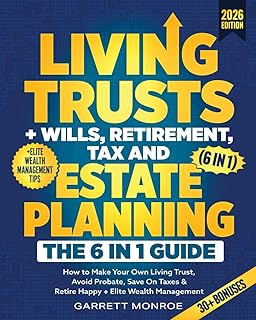
Price: $24.97 | Rating: 4.5/5
A 6-in-1 guide that goes beyond basic wills to include tax strategies, retirement planning, and wealth management. It addresses how to handle digital accounts and cloud storage in your estate plan, making it an excellent resource for those wanting a holistic approach.
Nolo’s Guide to Estate Planning

Price: $27.89 | Rating: 4.7/5
The gold standard in estate planning books from Nolo. This edition includes updated sections on digital assets, privacy, and online accounts. If you only buy one book, this is it. It explains how to document your cloud login credentials for your executor.
Estate Planning For Dummies

Price: $20.99 | Rating: 4.3/5
Perfect for beginners. It breaks down complex topics into plain language, including how to protect your digital footprint and ensure your cloud-stored documents are accessible to family. A great starting point before implementing advanced cloud security.
I’m Dead, Now What? Planner

Price: $11.63 | Rating: 4.6/5
This organizer is not a legal guide but a practical workbook where you write down all your accounts, passwords, and cloud storage locations. It includes sections for online accounts, safe deposit boxes, and instructions for accessing your digital files. Absolutely essential for your executor.
Step 6: Create a Digital Asset Inventory and Share It Safely
Your cloud safety plan is incomplete without a master list of every digital account, including:
- Email accounts (Gmail, Yahoo, Outlook)
- Cloud storage providers (Google Drive, iCloud, Dropbox, OneDrive)
- Social media accounts (Facebook, Instagram, LinkedIn)
- Financial accounts (banks, investments, credit cards)
- Subscription services (Netflix, Adobe, etc.)
How to share this list securely:
- Do not email it in plain text.
- Write it down on paper and store it with your will.
- Use a password manager’s “emergency access” feature (e.g., LastPass or Bitwarden allow a trusted contact to request passwords).
- Update the list every year.
For a broader look at protecting your home network, see Browser Security for Consumers: Privacy Settings, Extensions, and Safe Browsing Tips.
Step 7: Beware of Sharing Risks — Cloud Links Can Be Leaked
You share a folder of tax documents with your accountant via a cloud link. That link might be accessible even after you “revoke” it. Some cloud services use long, random URLs that are hard to guess, but they are still vulnerable to leaks.
Best practices for sharing estate-related files:
- Set expiration dates on shared links.
- Require password protection for sensitive links (most providers support this).
- Use viewer-only permissions (no download or edit).
- Revoke links immediately after the recipient has downloaded the files.
If you have smart home cameras or other IoT devices, remember they often upload footage to the same cloud account. An attacker who compromises your cloud could spy on your family. Read How to Secure Smart Home Devices: Cameras, Speakers, and Connected Appliances?.
Step 8: Plan for Your Digital Afterlife
What happens to your cloud data when you die? Most terms of service say the account belongs to you, not your heirs. Facebook allows memorialization; Google allows Inactive Account Manager; Apple has a Legacy Contact feature. But none of these are foolproof.
Action items:
- Add a clause in your will naming a digital executor and granting them authority to access your online accounts.
- Provide the digital executor with a sealed envelope containing your cloud login credentials (keep it with your will).
- Use a service like Everplans or MyWishes to store your digital legacy instructions.
For a step-by-step recovery guide if your account is hacked today, read How to Respond if Your Personal Email Account Gets Hacked?.
Common Mistakes to Avoid
- Relying on a single cloud provider for everything. If they suffer a ransomware attack or go under, your estate plan is gone.
- Saving passwords in your cloud account. Do not store a text file called “passwords.txt” in your Google Drive — if your account is hacked, the hacker gets everything.
- Ignoring encryption for scanned documents. OCR-based search can extract SSNs from PDFs. Encrypt before uploading.
- Not testing your backup. Perform a quarterly restore test of a critical file.
- Sharing your cloud password with family members. Instead, use shared folders with restricted permissions.
The Future of Cloud Storage Safety: Biometrics and Passwordless
The industry is moving toward passwordless authentication using passkeys (based on WebAuthn). This eliminates phishing risk entirely because there is no password to steal. Apple, Google, and Microsoft are already supporting passkeys.
For estate planning, passkeys create a new challenge: what happens if your biometric data (face or fingerprint) is no longer available? Current solutions allow you to set up a recovery key or a trusted device. Update your estate plan to include these recovery methods.
Learn more in Passwords vs. Passkeys: What Consumers Need to Know About the Future of Logins.
Final Checklist for Cloud Storage Safety in Estate Planning
- Choose a cloud provider with version history and inactive account management.
- Enable 2FA using an authenticator app.
- Encrypt sensitive files before uploading (Cryptomator or VeraCrypt).
- Create a dedicated “Estate Documents” folder and share view-only access with your executor.
- Implement 3-2-1 backup: cloud + local external drive + off-site external drive.
- Write down your cloud credentials and store securely with your will.
- Test restoration of one file every three months.
- Update your digital asset inventory annually.
- Read one of the recommended estate planning books to formalize your plan.
Your photos and documents are more than data — they are the story of your life and the blueprint for your family’s future. By following these steps, you ensure that story survives, stays private, and reaches the right hands when it matters most.
Frequently Asked Questions
Q1: Is it safe to store my will and trust documents in the cloud?
Yes, if you take precautions. Use a provider with strong encryption (AES-256), enable two-factor authentication, and encrypt the files client-side before uploading. Ensure your executor knows how to access them. Never store unencrypted copies of legal documents with your Social Security number.
Q2: What happens to my cloud storage when I die?
It depends on the provider’s terms. Most major cloud services (Google, Apple, Microsoft) have legacy contact or inactivity manager features. Without setting these up, your executor may need a court order to access your account. Always document your cloud login credentials in your estate plan.
Q3: Should I use a separate cloud account for estate planning documents?
It is not necessary, but it can simplify things. A dedicated cloud account for estate documents keeps everything organized and allows you to set distinct sharing permissions. Just ensure you still apply the same security measures (strong password, 2FA, encryption).
Q4: Can I trust free cloud storage for my personal photos and sensitive files?
Free tiers from major providers are reasonably secure for most consumers, but they come with risks: limited support, potential data mining (e.g., Google scans photos for AI training, though they claim not for ads), and no customer service for account recovery. For estate planning files, consider a paid plan with better support and version history.
Q5: How do I give my executor access to my cloud storage without compromising security?
Use the provider’s legacy or inactive account management feature. Alternatively, share a view-only folder with your executor now, or give them a sealed envelope with your master password. Do not write the password in your will (wills become public record after probate). Instead, keep it in a separate document with your will.